
Your Fire TV Stick can do a lot more than Netflix and Prime Video. Pair it with the right IPTV Firestick service, and that small dongle becomes a full live-TV box, with sports, news, international channels, and a huge on-demand library. The hard part is choosing a provider. Every site claims “no buffering” and “the most channels,” so we checked 5 popular services side by side. We compared their published channel counts, pricing, refund terms, and Firestick support so you can choose before you pay.
Key Takeaways
- All five providers support Amazon Firestick and offer a 24-hour free trial with no credit card required.
- Strive IPTV lists the largest live lineup (26,000+ channels) and the longest refund window (up to 45 days on its yearly plan).
- Nixon IPTV lists the biggest on-demand library: 130,000+ movies and 34,000+ series.
- HomePlex IPTV has the cheapest single-device yearly plan at $60.
- Xtream HD prices in GBP and takes orders through WhatsApp rather than a website checkout.
- To get IPTV on Firestick, you install a player app (usually through Downloader) and sign in with your provider’s Xtream Codes or M3U details.
- Test any service with its free trial during a live event before committing to a long plan.
Why Firestick Is the Most Popular Device for IPTV
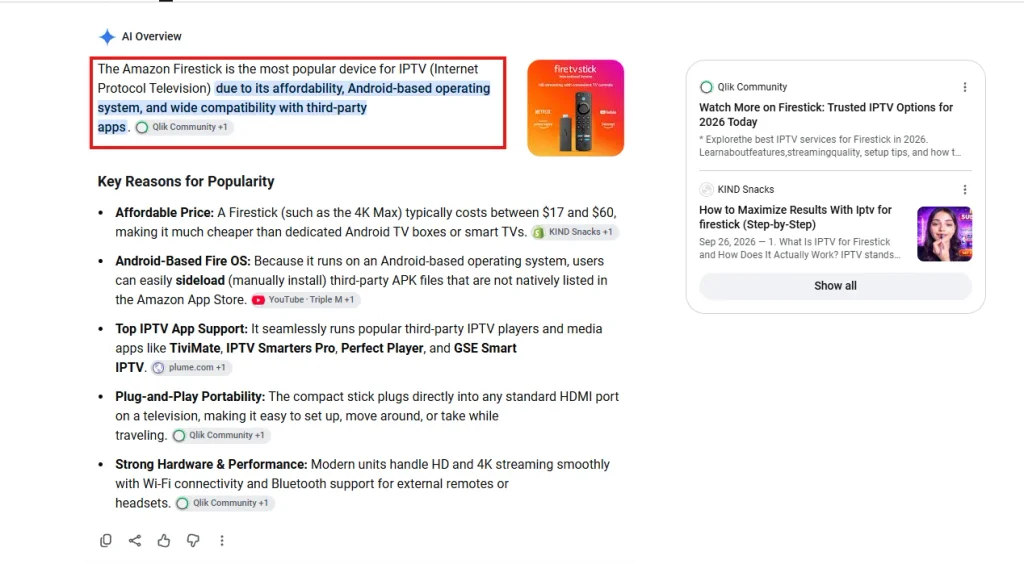
The Fire TV Stick is cheap, compact and runs Fire OS, which is built on Android. That means most Android-based IPTV players run on it. Amazon’s reach is huge: the company has said it has sold more than 250 million Fire TV devices since the first model launched in 2014, according to Thurrott’s report on Amazon’s announcement. With an install base that large, almost every IPTV provider builds and tests its service with Firestick users in mind.
One practical point: base-model sticks have limited memory. Large channel lists and 4K streams play better on a Fire TV Stick 4K or 4K Max. A wired Ethernet adapter also helps if your Wi-Fi signal is weak.
How We Compared These IPTV Firestick Services
We visited each provider’s official website and recorded only what they publish: live channel count, VOD library size, picture quality, plan prices, number of connections, refund terms, trial terms, and Firestick compatibility. We didn’t rely on third-party claims or unpublished figures. Where a provider’s site contradicts itself, we say so. For a wider look at the market, see our full roundup of the best IPTV providers.
The 5 Best IPTV Firestick Providers in 2026
1. Nixon IPTV: Best for On-Demand Movies and Series
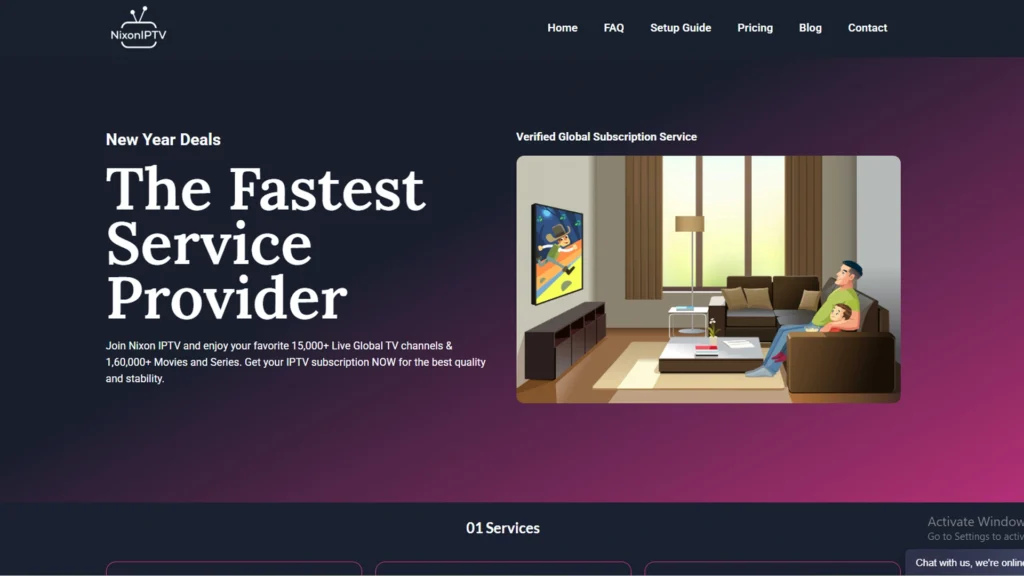
Nixon IPTV advertises 15,000+ live channels alongside a VOD library of 130,000+ movies and 34,000+ series, the largest on-demand catalog in this roundup. Channels come in HD, FHD and 4K with a built-in TV guide (EPG). Fire Stick is listed as a supported device, and plans cover up to three devices at once.
Pricing:
| Plan | 1 Device | 2 Devices | 3 Devices |
|---|---|---|---|
| 1 Month | $10 | $20 | $25 |
| 3 Months | $30 | $50 | $70 |
| 6 Months | $50 | $80 | $110 |
| 1 Year | $80 | $120 | $170 |
Pros:
- Largest published VOD library of the five
- Monthly plans available at every connection tier (1, 2 or 3 devices)
- 24-hour free trial and a 10-day money-back guarantee
- 24/7 support via live chat and email
Cons:
- Smallest live channel count in this comparison (15,000+)
- Catch-up TV isn’t mentioned on the plan cards
2. Strive IPTV: Best for Channel Variety and Refund Protection
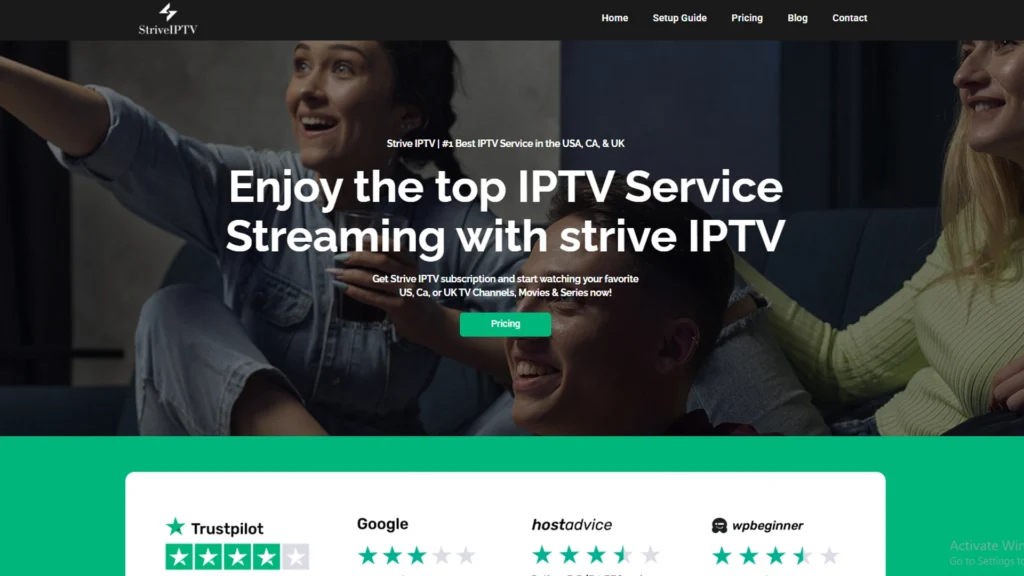
Strive IPTV lists 26,000+ live channels, 130,000+ movies and 50,000+ series in HD, FHD and 4K. Every plan includes catch-up TV and EPG. Supported platforms include Firestick, Roku, MAG, Enigma, Android boxes and Windows. The site also highlights its anti-freeze technology and H.264 encoding.
Pricing:
| Plan | 1 Device | 2 Devices | 3 Devices | Money-Back Guarantee |
|---|---|---|---|---|
| Basic (1 Month) | $15 | $25 | $35 | 10 days |
| Standard (3 Months) | $25 | $45 | $65 | 20 days |
| Premium (6 Months) | $45 | $70 | $100 | 30 days |
| Premium Plus (1 Year) | $65 | $110 | $150 | 45 days |
Pros:
- Largest live lineup in this roundup
- Refund window grows with plan length: 10 days on monthly plans, up to 45 days on yearly
- Catch-up TV included on every plan
- Pay by credit card or PayPal
Cons:
- Most expensive single-device monthly plan here ($15)
- The full 45-day guarantee applies only to the yearly plan
3. Propack IPTV: Best for Sports Fans
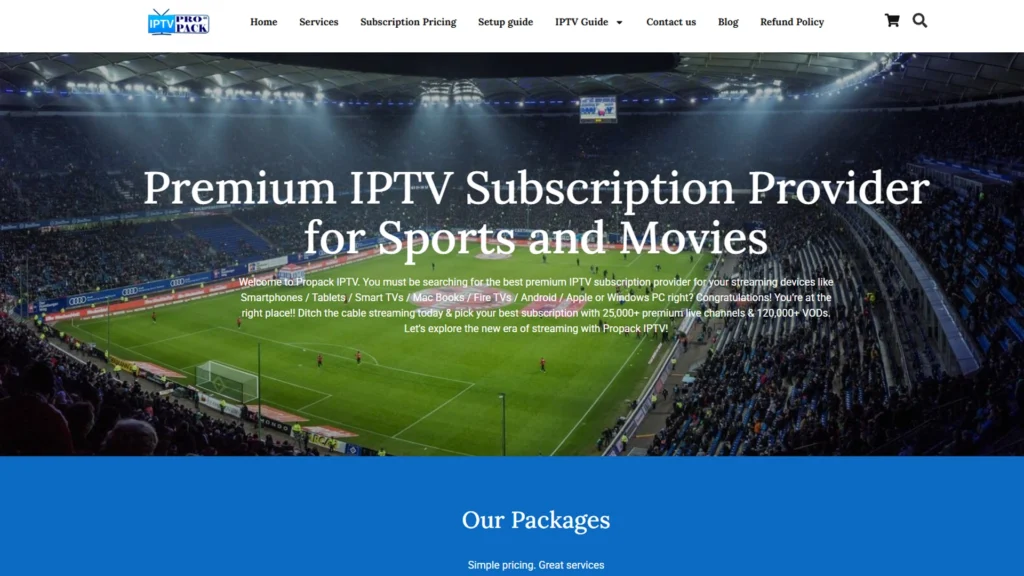
Propack IPTV lists 25,000+ live channels and 120,000+ VOD titles, including 200+ premium sports channels covering the Champions League, Premier league, NFL, NBA, EPL, UFC, WWE, and F1. Plans include HD, 4K, 8K and 3D streams, catch-up and EPG. The site’s FAQ recommends at least 10 Mbps for HD and 25 Mbps for 4K.
Pricing:
| Plan | 1 Device | 2 Devices | 3 Devices |
|---|---|---|---|
| 1 Month | $10 | Not offered | Not offered |
| 3 Months | $25 | $45 | $65 |
| 6 Months | $45 | $70 | $100 |
| 1 Year | $70 | $120 | $150 |
Pros:
- Dedicated lineup of 200+ sports channels
- The only provider here that advertises 8K and 3D content
- Clear internet-speed guidance before you subscribe
- PayPal and major cards accepted
Cons:
- Refund terms are inconsistent: the homepage promises 45 days, but every plan card says 10 days
- No monthly option for 2- or 3-device plans
- Only about 80% of channels have EPG data, according to the site
4. HomePlex IPTV: Best Budget Yearly Plan
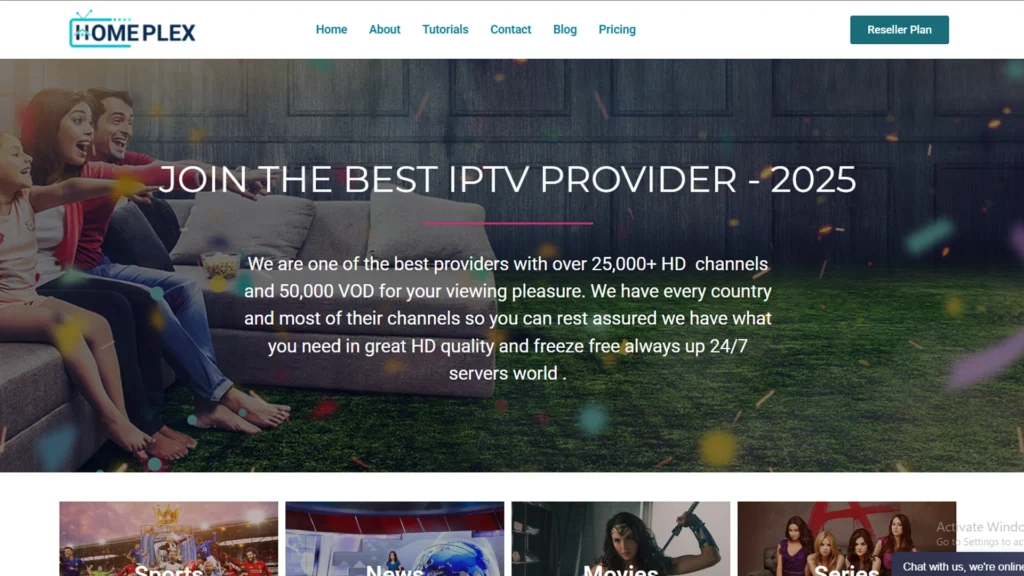
HomePlex IPTV offers 25,000+ live channels and 50,000+ VOD titles in HD, FHD and 4K, with EPG on every plan. It lists Firestick, Smart TVs, Android, iOS, MAG boxes, PCs, and gaming consoles as compatible. Support runs 24/7 through live chat, WhatsApp, and email.
Pricing:
| Plan | 1 Device | 2 Devices | 3 Devices |
|---|---|---|---|
| 1 Month | $10 | Not offered | Not offered |
| 3 Months | $25 | $45 | $65 |
| 6 Months | $40 | $70 | $100 |
| 1 Year | $60 | $100 | $150 |
Pros:
- Lowest single-device 6-month and yearly prices in this roundup
- WhatsApp support in addition to live chat and email
- Accepts PayPal, Visa, Mastercard, and Discover
Cons:
- Smallest VOD library of the five (50,000+)
- Catch-up TV isn’t listed on its plans
- No monthly option for multi-device plans
5. Xtream HD IPTV: Best for UK Viewers
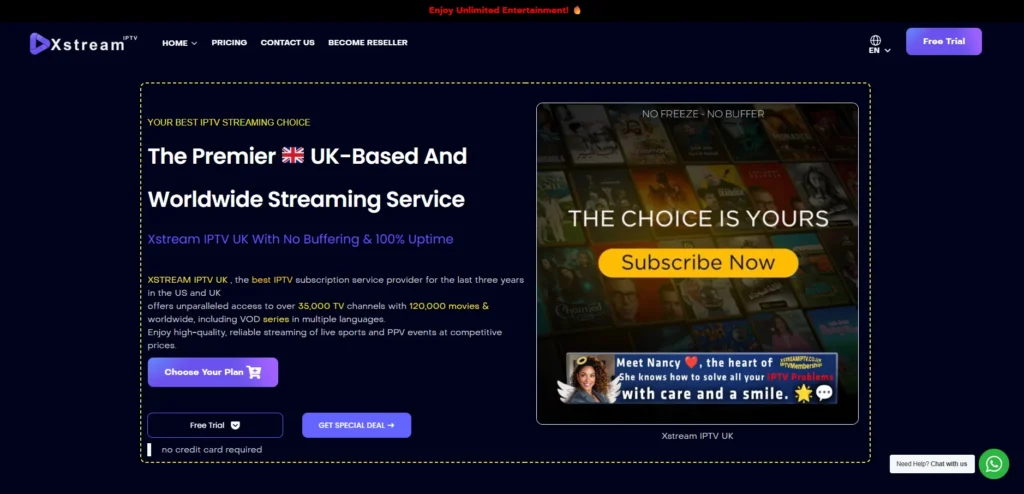
Xtream HD IPTV is a UK-focused provider that says it has operated since 2015. Its plan cards list 35,000+ channels and 40,000+ movies and series, with PPV included. Firestick and Amazon IPTV boxes appear in its compatibility list alongside Samsung Smart TV, Apple TV, Android, and Mac.
Pricing:
| Plan | Regular Price | Sale Price (GBP) | USD / EUR Equivalent |
|---|---|---|---|
| 1 Month | £19 | £15.99 | $20.99 / €17.99 |
| 3 Months | £35 | £23.99 | $31.57 / €27.37 |
| 6 Months | £49 | £38.99 | $51.25 / €44.45 |
| 12 Months | £69 | £61.99 | $81.50 / €70.65 |
Pros:
- GBP pricing suits UK buyers
- PPV events included
- 24-hour trial and a 7-day refund guarantee
Cons:
- Orders and trials go through WhatsApp, not a website checkout
- Channel and VOD figures vary across different parts of the site
- Shortest refund window in this roundup (7 days)
- Multi-device prices aren’t published
UK viewers comparing more options can also read our guide to the best IPTV for the UK.
How to Download IPTV on Firestick (Step by Step)
Most IPTV services don’t publish their own app in the Amazon Appstore. Instead, you install a third-party player and load your subscription into it. Here’s the usual process for setting up IPTV on Firestick:
- Enable Developer Options. Go to Settings > My Fire TV > About and click your device name seven times. On newer sticks, Developer Options won’t appear until you do this.
- Allow unknown apps. Open Settings > My Fire TV > Developer Options > Install Unknown Apps, and switch it on for Downloader.
- Install Downloader. Search for “Downloader” on the Firestick home screen and install it from the Amazon Appstore.
- Install your IPTV player. Use Downloader to get the player your provider recommends, such as IPTV Smarters Pro or TiviMate.
- Sign in. Enter the Xtream Codes login (server URL, username, and password) or the M3U link your provider sent you.
- Load the EPG and test. Let the channel list and TV guide load, then test a few live channels.
Not sure which login type to use? Our explainer on IPTV URL, M3U and MAC address logins covers the differences.
Choosing the Right IPTV App for Firestick
Your IPTV provider supplies the channels, and the player app decides how they look and behave on your TV. TiviMate is known for its cable-style guide and multi-playlist support. IPTV Smarters Pro is free and simple to set up. Both accept Xtream Codes and M3U logins, so any of the five providers above will work with either one. We test the main options in our roundup of the best IPTV players.
IPTV Firestick Comparison Table and Verdict
| Provider | Live Channels | VOD | From (1 device/month) | 1 Year (1 device) | Refund | Best For |
|---|---|---|---|---|---|---|
| Nixon IPTV | 15,000+ | 130,000+ movies, 34,000+ series | $10 | $80 | 10 days | Movies and series |
| Strive IPTV | 26,000+ | 130,000+ movies, 50,000+ series | $15 | $65 | 10–45 days (by plan) | Channel variety |
| Propack IPTV | 25,000+ | 120,000+ | $10 | $70 | 10 days on plans (45 on homepage) | Sports |
| HomePlex IPTV | 25,000+ | 50,000+ | $10 | $60 | 10 days | Budget yearly plan |
| Xtream HD IPTV | 35,000+ (plan cards) | 40,000+ (plan cards) | £15.99 | £61.99 | 7 days | UK viewers |
All figures as published on each provider’s website, October 2026.
Our verdict:
For most Firestick users, Nixon IPTV is the strongest all-rounder. It has the biggest on-demand library, a $10 entry price, and monthly plans at every device tier. If live channel count matters most, Strive IPTV leads with 26,000+ channels and the most generous refund on long plans. Propack suits sports fans, HomePlex IPTV is the cheapest way to lock in a full year, and Xtream HD fits UK buyers who are comfortable ordering through WhatsApp.
Whichever service you choose, run the free trial during a live match or a busy evening, when servers are under the most load. Our list of the best IPTV free trials has more options to test.
Frequently Asked Questions
-
What is the best IPTV app for Firestick?
TiviMate and IPTV Smarters Pro are the two most widely used IPTV players on Firestick. TiviMate offers a cable-style guide, while Smarters Pro is free and beginner-friendly. Both work with Xtream Codes and M3U logins. Compare them in our IPTV player guide.
-
How do I download IPTV on Firestick?
Turn on Developer Options and allow unknown apps for Downloader. Then use Downloader to install an IPTV player, open it, and enter the Xtream Codes or M3U details from your provider. The whole process usually takes 5–10 minutes.
-
Is IPTV legal to use on a Firestick?
IPTV technology itself is legal. Whether a specific service is legal depends on whether it holds the rights to the content it streams, and laws vary by country. Check your local rules, and see our list of legal IPTV service providers for fully licensed options.
-
Do I need a VPN for IPTV on Firestick?
A VPN isn’t required, but it adds privacy and can get around ISP throttling of streaming traffic. It can also add latency, so choose a fast service with nearby servers. Our VPN for IPTV guide lists tested options.
Final Thoughts on Choosing an IPTV Firestick Service
The best IPTV Firestick setup combines a reliable provider, a good player app and a stable connection. All five services here support Firestick and offer a 24-hour trial, so testing costs you nothing. Start with the provider that matches your priority, whether that’s VOD, channel count, sports, price or UK coverage. Still comparing? Browse our complete list of the top IPTV providers, or read our guide to the best IPTV subscriptions before you commit.

4 Responses