
IPTV on Roku is possible, but it does not work in the same simple way it does on Firestick or Android TV. Roku needs a different approach, and once you understand why, the setup becomes much easier to follow.
Many people buy a Roku expecting to install an IPTV app the same way they would on other devices, only to find out that option is not available. This guide breaks down exactly why that happens and walks through every method that actually works, explained in plain language so even a first-time user can follow along.
What Is Roku And How Does It Work
Roku is a streaming device that lets you watch apps like Netflix, Prime Video, Disney Plus, YouTube, and Hulu on your television. There are two ways to get Roku on a TV.
- Roku Streaming Device: a small stick or box that plugs into the HDMI port of any television.
- Roku TV: a smart television that already has Roku built in, so no separate device is needed.
Both options work the same way once set up. The only difference is whether you buy the device separately or get it built into the TV.
Why Roku Does Not Support IPTV Natively
Roku runs on a closed operating system, which means it only allows apps that are approved and listed in the Roku Channel Store. This creates a few limitations.
- Roku does not allow APK installation, so apps like TiviMate or IPTV Smarters Pro cannot be sideloaded.
- Roku has no built-in option to enter an M3U link or Xtream Codes login directly.
- Roku does not support installing a VPN app directly on the device, so a VPN has to be configured at the router level if needed.
Because of these restrictions, watching IPTV on Roku requires a workaround. The methods below cover all options that currently work.
Ways To Watch IPTV On Roku
There are 5 practical ways to get IPTV working on a Roku device. Each one suits a different type of user, so pick the one that fits your setup best.
Method 1: Screen Mirroring From Android Or Windows
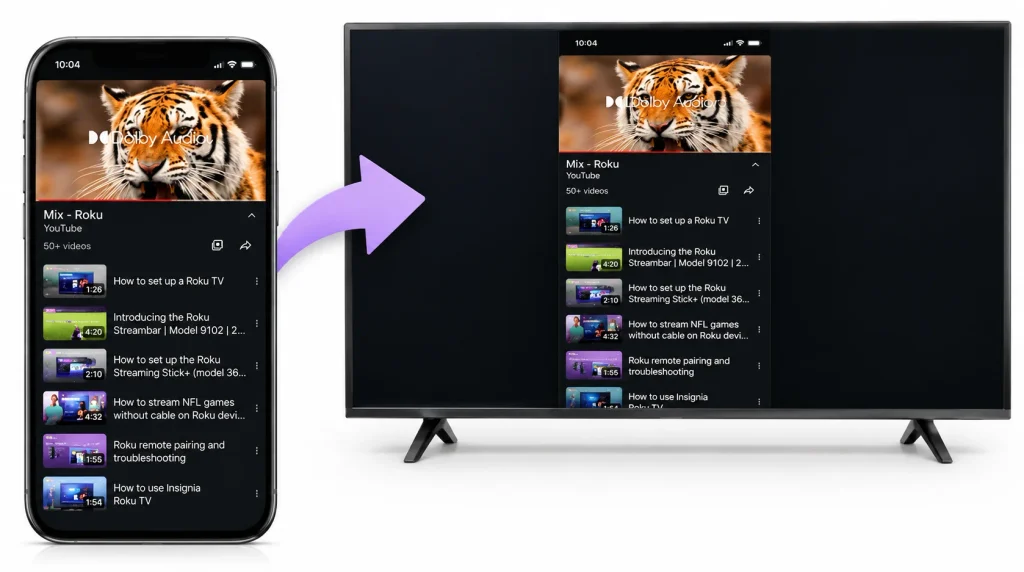
This method involves running a full IPTV player on your phone or computer, then mirroring that screen to your Roku.
- On your Roku, go to Settings, then System, then Screen Mirroring.
- Set the mirroring mode to Always Allow or Prompt.
- Install an app such as IPTV Smarters Pro on your phone and add your M3U link or Xtream Codes login.
- Confirm the channels play correctly on the phone first.
- Make sure your phone and Roku are connected to the same Wi Fi network.
- Open Quick Settings on your phone and tap Cast or Screen Mirroring, then select your Roku device.
- Open the IPTV app and start playing a channel; it will now show on the TV.
Windows users can press the Windows key and K together to open the Cast menu, then select the Roku device and play a channel from an IPTV app.
This method works on almost every Roku model and does not cost anything extra, though there can be a small amount of lag.
Method 2: Apple AirPlay from iPhone, iPad, or Mac
Most Roku models released after 2020 support AirPlay 2, which makes this the smoothest option for Apple users.
- On Roku, go to Settings, then Apple AirPlay and HomeKit, and turn AirPlay on.
- Install an app such as GSE Smart IPTV or IPTV Smarters Lite on your iPhone or iPad and add your M3U link or Xtream Codes details.
- Open Control Center and tap Screen Mirroring, then select your Roku.
- Enter the code if one appears, then open the IPTV app and play a channel.
If you have an older Roku, check Settings, System, About to confirm it is running Roku OS 9.4 or newer, since AirPlay needs that version at minimum.
Method 3: Roku Channel Store IPTV Apps
A handful of IPTV players are available directly through the Roku Channel Store, which means you can watch without needing a second device once it is set up. Our own Roku setup walkthrough covers this same method using the IPTV Smarters Channel and the M3U Playlist Player Channel in more detail.
- From the Roku home screen, go to Streaming Channels.
- Search for an app such as IPTV Stream Player and select Add Channel.
- Open the app; it will usually show an activation code along with a website address.
- On your phone or computer, visit that address, enter the code, then add your M3U link or Xtream Codes details and save.
- Go back to the app on Roku and reload it. Your channel list should now appear.
This method does not require a second device once activated, though the initial activation process can feel a bit clunky.
Method 4: Plex And Threadfin for a Whole-Home Setup
This is the most complete option if you want DVR (Digital Video Recorder) recording and an EPG (Electronic Program Guide) alongside Internet Protocol Television (IPTV). It involves running Plex Media Server on a home computer or NAS, with Threadfin acting as the middleware that turns your M3U playlist into a virtual tuner.
- Install Plex Media Server and Threadfin on a computer or NAS.
- Add your M3U playlist link and EPG link inside Threadfin.
- In Plex, go to Live TV and DVR and add Threadfin as a custom tuner.
- On Roku, go to Streaming Channels and install the official Plex app, then sign in.
- Open Plex on Roku and go to Live TV and DVR to start watching.
DVR recording through Plex requires a Plex Pass subscription.
Method 5: Roku Media Player With A Local M3U File
Roku Media Player is a free official app that can play files from a USB drive or a network share, and it supports M3U files.
- From Streaming Channels, install Roku Media Player.
- Download your M3U playlist from your IPTV provider and save it to a USB drive or network share.
- Plug the USB drive into a Roku Ultra, since it is the only model with a USB port.
- Open Roku Media Player, select the M3U file, and the streams should start playing.
Benefits Of Using IPTV On Roku
There are a few practical reasons people choose to set up IPTV on their Roku device.
- Access to a large number of live channels, sports, movies, and shows in one place.
- Lower cost compared to traditional cable or satellite subscriptions.
- Content can be watched anytime, without being tied to a broadcast schedule.
- Many IPTV services include EPG, catch-up TV, and pause and rewind features.
- The same subscription can usually be used across phones, tablets, computers, and TVs.
- A stable internet connection allows for HD and 4K streaming quality.
Best IPTV Player Apps For Roku
Since Roku does not run these apps natively, they need to be used through mirroring or casting. Here are the ones worth trying.
IPTV Smarters Pro supports both M3U and Xtream Codes, along with EPG and VOD. It works through Screen Mirroring or AirPlay.
IBO Player Pro uses a simple activation portal and has a clean, easy-to-use interface.
Web Video Caster casts directly from a phone without needing to mirror the entire screen.
GSE Smart IPTV works well for Apple users and supports multiple playlist formats.
VLC Media Player is free and open source, and it can stream M3U playlists, though it does not have a built-in EPG.
Tips To Get Better IPTV Performance On Roku
A few small adjustments can noticeably reduce buffering and improve stream quality.
- Use Ethernet if possible; otherwise, connect to 5 GHz Wi Fi rather than 2.4 GHz.
- Set the video resolution to match what your TV actually supports.
- Keep Roku OS updated to the latest version.
- Avoid heavy downloads or streaming on other devices at the same time.
- Choose a reliable IPTV provider with stable servers.
- Restart Roku occasionally to clear the cache.
- Remove apps that are no longer being used.
Common Roku Issues And How To Fix Them
A few simple fixes solve most of the problems people run into while streaming IPTV on Roku.
- Check your internet connection through Settings, Network, and Check Connection. Move the router closer or restart it if the signal is weak.
- Restart Roku through Settings, System, System Restart, or unplug and replug the power if the screen is frozen.
- Fix remote issues by removing and reinserting the batteries, then holding the pairing button for a few seconds.
- Update Roku software through Settings, System, System Update.
- Check the HDMI cable and power connection, and try a different HDMI port if needed.
- Clear the app cache by removing the IPTV app and reinstalling it from the Channel Store.
- As a last resort, go to Settings, System, Advanced System Settings, Factory Reset, keeping in mind that this erases all settings and apps.
Roku vs Firestick vs Android TV For IPTV
A quick side-by-side look at how these three devices compare when the main goal is streaming IPTV.
| Feature | Roku | Firestick | Android TV |
|---|---|---|---|
| Native IPTV apps | Limited | Excellent | Yes |
| M3U support | Through casting | Direct | Direct |
| Xtream Codes support | Through casting | Direct | Direct |
| Screen Mirroring | Yes | Yes | Yes |
| AirPlay | Yes | No | Limited |
| Ease of use | Very easy | Easy | Moderate |
| Customization | Low | High | Highest |
In short, Firestick offers the widest native IPTV app support, Android TV offers the most flexibility, and Roku offers the simplest overall experience.
Final Thoughts: Should You Use Roku For IPTV
Roku is built primarily for mainstream apps like Netflix, Hulu, and Disney Plus, and the methods above do make IPTV usable on it. That said, it is not the ideal platform for IPTV since apps like TiviMate or IPTV Smarters Pro cannot be installed directly.
If you already own a Roku and only watch IPTV occasionally, Screen Mirroring or a Channel Store app should be enough. If IPTV is something you watch regularly, adding a Firestick to a spare HDMI port and keeping Roku for mainstream apps is usually the more convenient setup.
Not sure which provider to pair with your Roku setup? You can start with a free trial to test channel quality and stability.
Frequently Asked Questions About IPTV on Roku
Here are quick answers to the questions people ask most often before and after setting up IPTV on Roku.
-
Can you install IPTV directly on Roku?
No. Roku does not support apps that use M3U playlists or Xtream Codes natively. Screen Mirroring, AirPlay, or a Channel Store app is required instead.
-
What is the easiest way to watch IPTV on Roku?
Screen mirroring from Android or AirPlay from an iPhone is the easiest option, requiring only a compatible IPTV app and an active subscription.
-
Does Roku support M3U playlists?
Not directly. The playlist has to be played on another device first and then mirrored or cast to Roku, or played through Roku Media Player as a local file.
-
Can Xtream Codes be used on Roku?
Yes, but indirectly. The login has to be entered into an IPTV app on another device, which is then mirrored or cast to Roku.
-
Can APK files be installed on Roku?
No. Roku OS does not support Android APK installation.
-
Is IPTV legal on Roku?
IPTV player apps themselves are legal. Content should only be streamed from licensed and authorized providers, following local copyright laws.
-
What internet speed is needed for IPTV on Roku?
A minimum of 10 Mbps is recommended for HD streaming, and 25 Mbps or higher works better for 4K with minimal buffering.
-
Why does IPTV keep buffering on Roku?
This is usually caused by a weak internet connection, Wi Fi interference, an overloaded server, or outdated Roku software.
-
Which Roku device works best for IPTV?
The Roku Ultra and Roku Streaming Stick 4K are generally the best choices due to stronger processors and dual-band Wi-Fi.

One Response